Kitchen designer
The kitchen designer shows one branch's kitchen in four tabs:
- Drawing: where each kitchen station, kitchen screen and Print Bridge is, with prep zones, counters, the pass, walls and doors. From here a manager can also change a station's output, print a test ticket, pair a screen, and rename or unpair a device.
- Routing: which station receives each product or category, as a graph and as a list. You change it through forms, check the result, and only then activate it.
- Test an order: where an item would go, without sending, printing or saving anything.
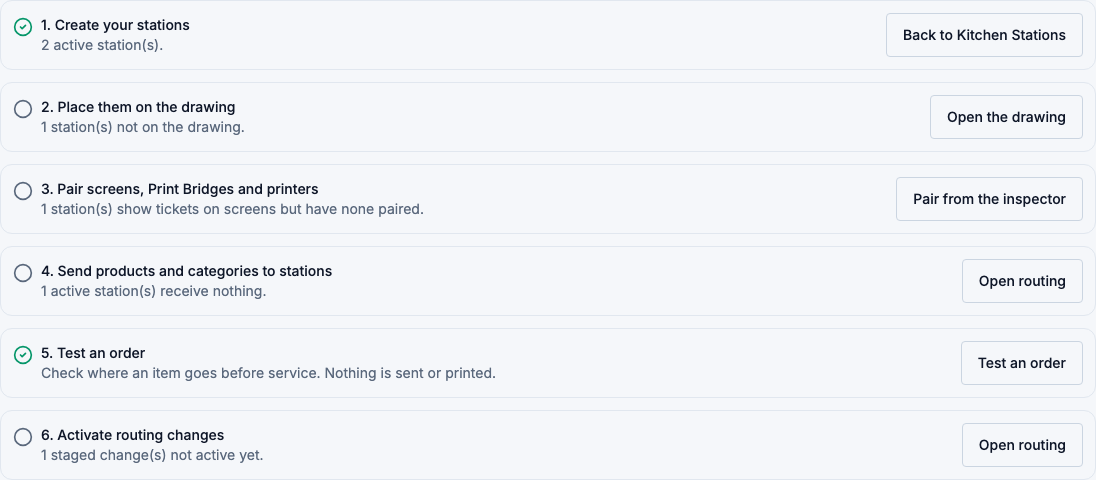
- Setup: a checklist from creating stations to an active, tested routing.
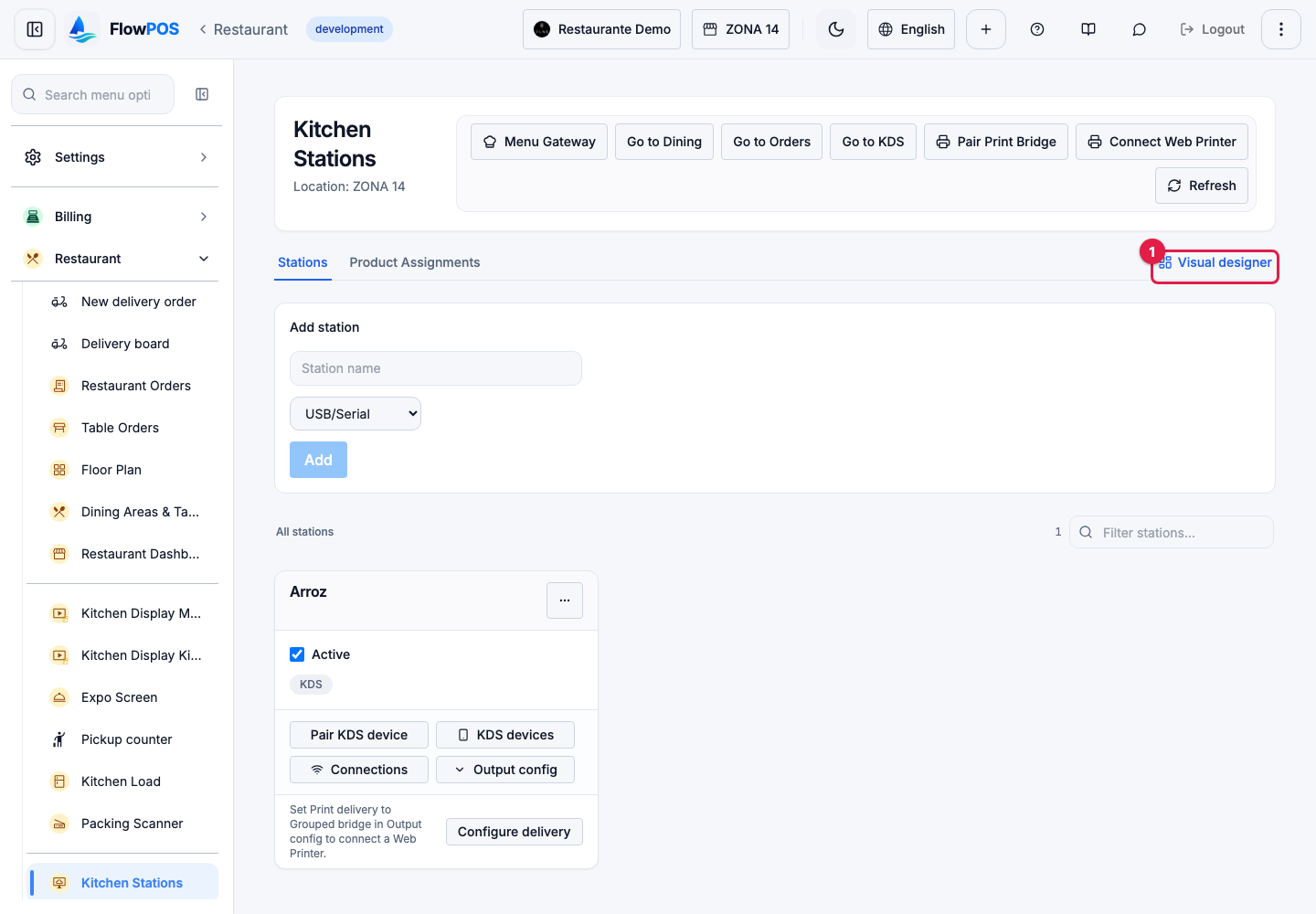
Module: Restaurant. Open it from: Restaurant → Kitchen Stations → Visual designer. Open the kitchen designer
Who it is for: owners, admins, administrators and store managers who set up and maintain the kitchen. Cooks, waiters and cashiers don't use it.
Moving a station on the drawing, or publishing a layout, never changes where tickets go. Routing changes only when you activate changes in the Routing tab. Output settings and device changes take effect as soon as you save them in the inspector, as they do in Kitchen Stations.
When to use it
Use the kitchen designer to:
- Set up a new kitchen: draw it, pair the screens, send each category to its station and test an order before the first service.
- See the whole kitchen at once: which station each screen belongs to, which screens are connected, and which stations print paper.
- Change routing safely: for example, send every dessert to a new pastry station, or send a copy of every dish to an expo screen. You see the effect before it reaches the kitchen.
- Answer "where does this go?": test a product, with its modifiers and dining area, when a cook says a ticket arrived at the wrong station.
Use Restaurant → Kitchen Stations instead to create, rename, deactivate or delete a station, to pair a Print Bridge or connect a Web Printer, and to see each station's devices and connections. The designer works on the stations that already exist.
Before you begin
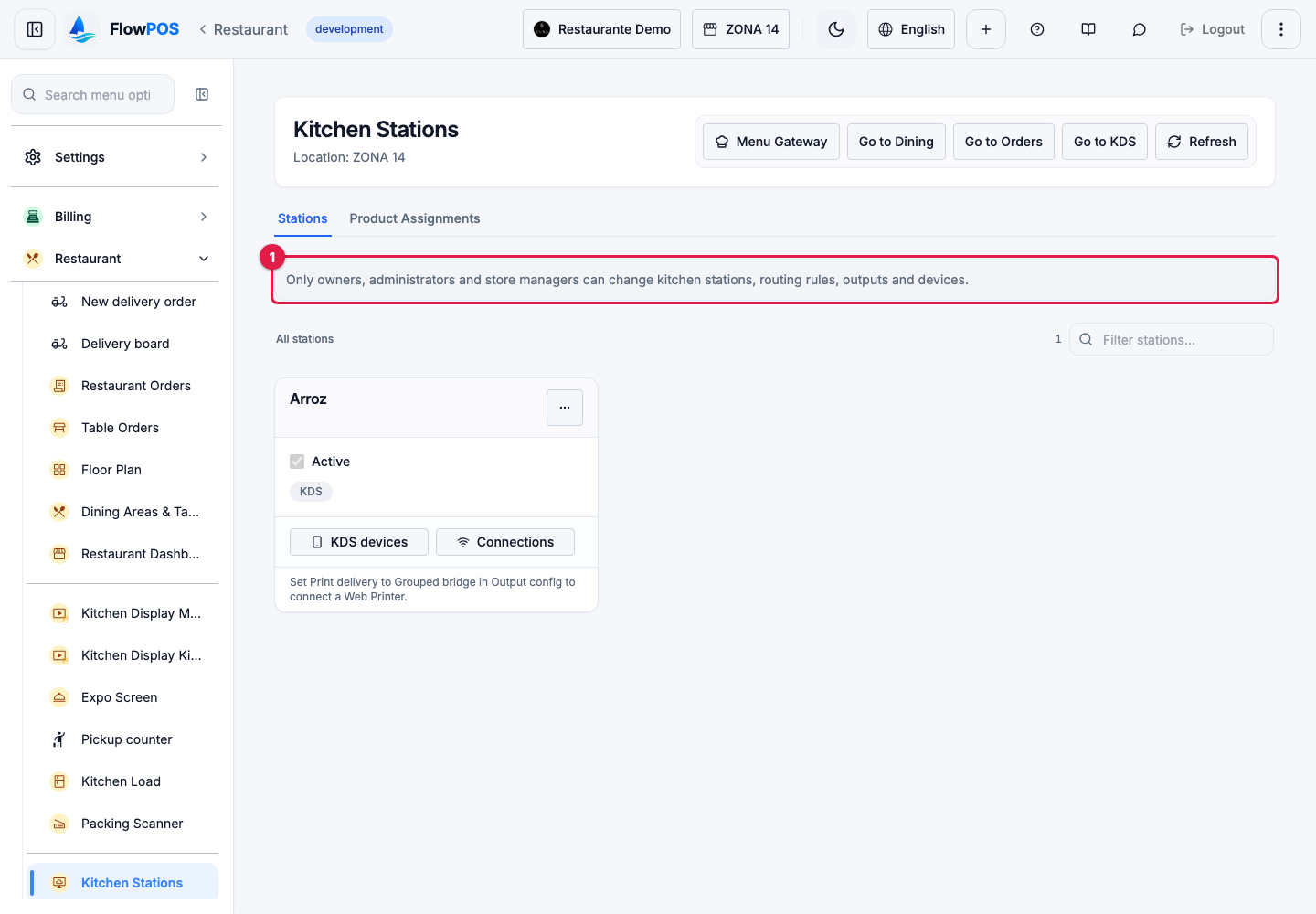
- Your role: owner, admin, administrator or store manager. Other roles don't see Visual designer, and see Kitchen Stations read-only. If one of them opens the designer's address directly, they see Only owners, administrators and store managers can use the kitchen designer, and only where the kitchen designer module is on.
- The module: the business has the Kitchen Designer Module on in Admin → Modules, together with the Restaurant Module. Without it, Kitchen Stations works as before and has no Visual designer button.
- Your branch: you must be assigned to the branch, owners included. The designer works on the branch selected at the top of the screen.
- Stations: the branch has at least one kitchen station in Kitchen Stations. With none, the designer says This branch has no kitchen stations. Create one in Kitchen Stations first.
- A connection: the designer needs the internet; nothing is kept for later when you are offline.
Only owners, admins, administrators and store managers can create, change or delete stations, routing rules and output settings, test-print, and pair, rename or unpair devices. This applies on Kitchen Stations too, with or without the designer, and the server enforces it: other roles can't make these changes from any screen.
Understanding the screen
- Header: Kitchen designer, the current location, and Back to Kitchen Stations.
- The notice under the header: Moving or publishing the drawing never changes routing, screens, printers or tickets…
- Tabs: Drawing, Routing, Test an order and Setup. Routing shows a number when you have staged changes. Switching tabs keeps your work in every tab.
The Drawing tab
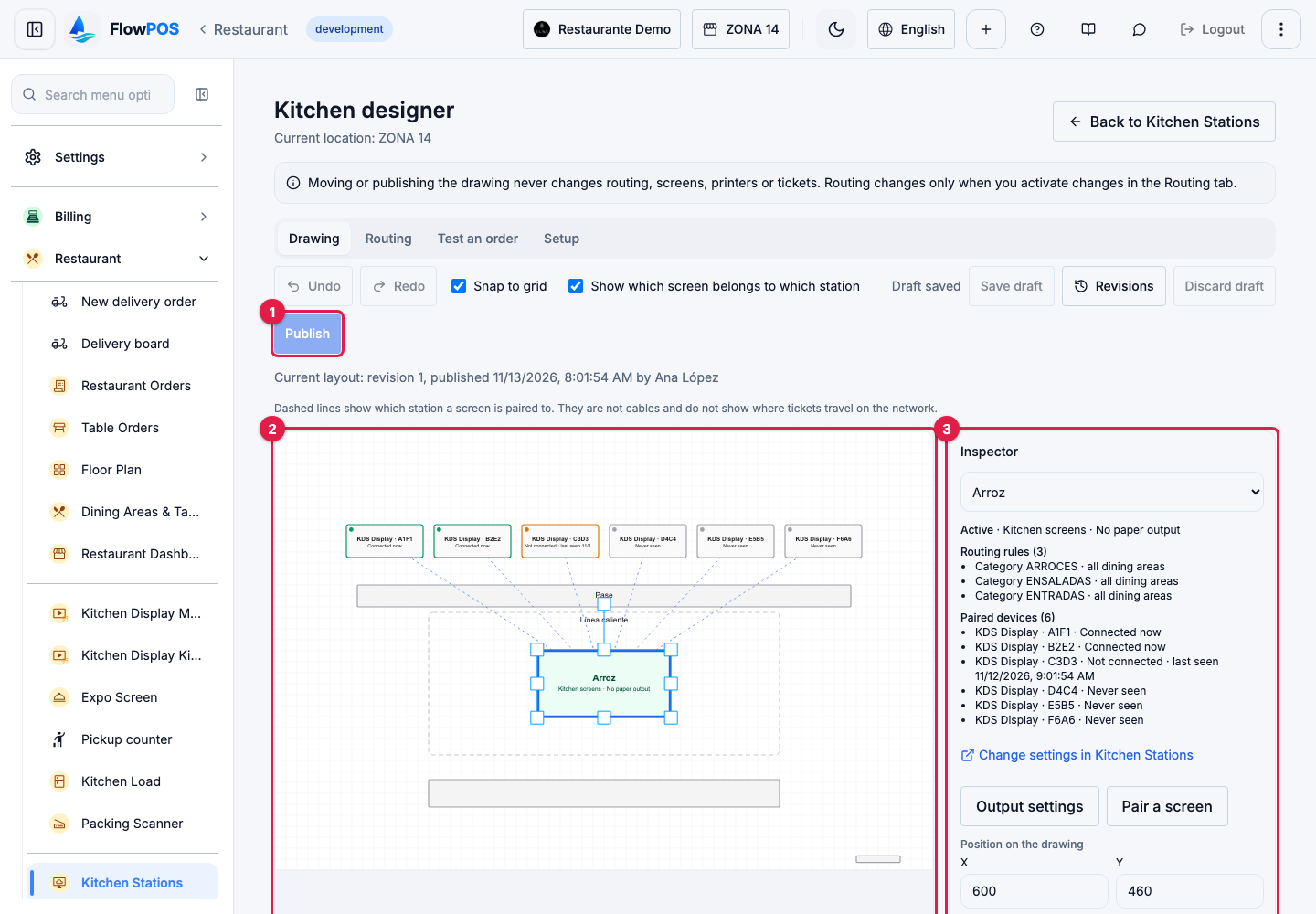
- Toolbar:
- Undo and Redo.
- Snap to grid: moved and resized elements land on the grid lines.
- Show which screen belongs to which station: draws a dashed line from each screen to its station. These lines are not cables and don't show how tickets travel on the network.
- The save status: Draft saved, Unsaved changes, Saving… or Not saved.
- Save draft, Revisions, Discard draft and Publish.
- Below the toolbar: Current layout: revision …, published … by …, once a layout has been published.
- The drawing. Zoom with the mouse wheel or by pinching, and drag an empty spot to pan.
- Side panel:
- Inspector: choose any station, device or fixture from the list, or tap it on the drawing. It shows what the element is, the manager actions, and its Position on the drawing.
- Not on the drawing yet: each station and device of the branch that isn't placed, with Place station … or Place …. When everything is placed: Every station and device of this branch is on the drawing.
- Add to the drawing: Prep zone, Counter, Pass, Wall, Door and Label.
- Canvas: the size of the drawing area and of the grid.
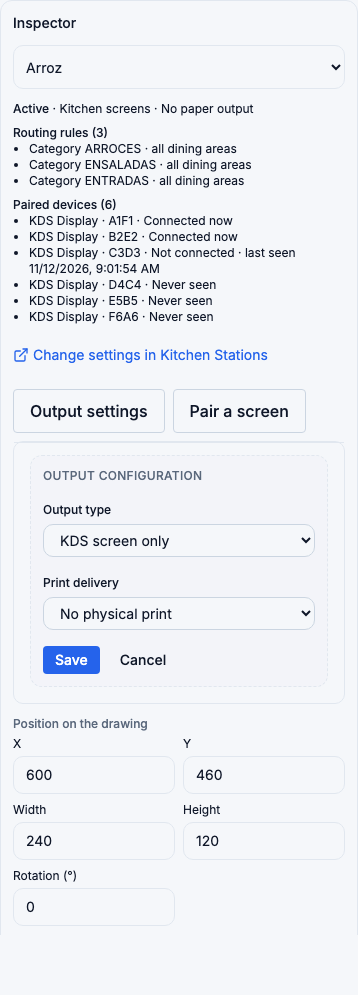
The example data in these pictures: branch ZONA 14 has one station, Arroz, that only shows tickets on screens, with six screens paired to it.
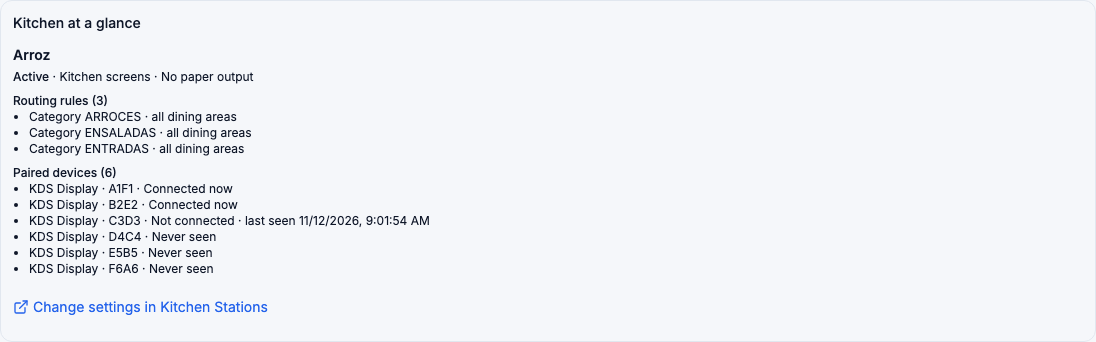
Kitchen at a glance
Below the drawing, Kitchen at a glance lists every station in words: active or inactive, its screens and paper output, its routing rules, its paired devices with their status, and any warning. It says the same things as the drawing, and is easier to read with a screen reader.
What the statuses and warnings mean
| Shown | Meaning |
|---|---|
| Active / Inactive | Whether the station receives tickets. An inactive station receives none |
| Kitchen screens / No kitchen screens | Whether the station shows tickets on kitchen screens |
| No paper output | Nothing prints this station's tickets |
| Paper via Print Bridge or Web Printer | A Print Bridge or Web Printer prints the station's tickets, including for a screens-only station set up that way |
| Paper via network printer (server) / Paper via network HTTP printer | FlowPOS's server sends the tickets to a printer on the network |
| Paper output not configured | The station should print, but no print channel is set |
| Connected now | The device has a live connection to FlowPOS at this moment |
| Not connected · last seen … | The device is paired but not connected; the time is when it last checked in |
| Never seen | The device is paired but has never checked in |
| Station is inactive: it receives no tickets. | Turn the station on in Kitchen Stations if it should receive tickets |
| No active routing rule sends items here. | Nothing reaches this station unless it is the branch's default station |
| Shows tickets on screens, but no screen is paired. | Pair a screen, or the station's tickets are seen nowhere |
| Prints tickets, but no print channel is set. | Choose a print delivery in Output settings |
| Screens only, yet a server print channel is set; the server never prints it. | Choose No physical print or the grouped bridge in Output settings |
When live connection status can't be read, the designer says so and no device is shown as connected.
Field reference
Position on the drawing (inspector)
| Field | Purpose | Limits | Example |
|---|---|---|---|
| X, Y | Where the centre of the element is, in drawing units | Within the drawing | X 600, Y 460 |
| Width, Height | The element's size | 10 to 2,000 | 240 × 120 for a station |
| Rotation (°) | How far it is turned, clockwise | 0 to 359 | 90 |
| Label (fixtures only) | Text shown on a fixture | Up to 60 characters; empty means none | Grill line |
Canvas
| Field | Purpose | Limits | Example |
|---|---|---|---|
| Width, Height | The size of the drawing area | 400 to 10,000; a value outside is brought to the nearest limit | 1,600 × 1,000 |
| Grid | The spacing of the grid lines, and how far an arrow key moves an element | 5 to 200 | 20 |
A layout holds up to 200 stations, 200 devices and 300 fixtures. A station's name, output and devices are not edited in these fields; they come from the station itself.
Routing rule
| Field | Purpose | Required? | Rules | Example |
|---|---|---|---|---|
| Routes (A category or A product) | What the rule sends | Yes, for a new rule | Fixed once the rule exists; to route something else, add a new rule | Category ARROCES |
| Send to station | The station that receives the item | Yes | A station of this branch | Arroz |
| Dining area | Only orders from this area, or all dining areas | No | An area of this branch | Terrace |
| Priority (lower wins) | Which rule wins when two could apply | Yes | 1 or more; a new rule starts at 100 | 100 |
| Rule on | Whether the rule is used | — | Off keeps the rule but ignores it | On |
| Also send to (multicast) | Other stations that receive a copy | No | Up to 20 stations of this branch | Expo |
| When a modifier is chosen (Modifier group, Modifier, station) | Send the item to a different station when it carries that modifier | No | The modifier and the station must exist in this branch | Extra spicy → Wok |
Product rules come before category rules. For the same item, a rule for one dining area comes before a rule for all areas. Two active rules for the same item and dining area are not allowed: the list marks them duplicate, and activation is refused.
Test an order
| Field | Purpose | Example |
|---|---|---|
| A product / A category | What to test | A product: Arroz con pollo |
| Dining area | Where the order comes from; No dining area (e.g. takeaway) for none | Terrace |
| Add a modifier | Modifiers on the item (choose a group, then a modifier) | Extra spicy |
| Include staged changes (…) | Test with your staged changes, as if they were active | On |
Output settings (inspector)
The same form as in Kitchen Stations:
| Field | Options |
|---|---|
| Output type | KDS screen only, Thermal printer only, KDS screen + thermal printer |
| Print delivery | No physical print or Grouped bridge (Print Bridge / Web Printer); for a station with a printer, also Server TCP (legacy, per-item) and Network HTTP printer |
| Printer URL | Only for the two server channels |
| Paper width, Header lines, Cut paper after each ticket, Copies | Only when the station prints |
A KDS screen only station can't use the two server channels: the form doesn't offer them and the server refuses them.
Device name
Device name gives a device a name people can tell apart, such as KDS Arroz 1. From 1 to 80 characters.
Step by step
Draw your kitchen
- Open the Drawing tab.
- Under Not on the drawing yet, choose Place station … or Place … for each station and device. It appears in the middle of the drawing, selected.
- Drag it into place. To resize or rotate, use the handles around it, Rotate 90°, or the number fields in the inspector.
- Under Add to the drawing, add prep zones, counters, the pass, walls, doors and labels. For a fixture, type its text in Label.
Result: the draft saves itself about a second and a half after each change; Draft saved confirms it. Save draft saves at once. Nothing in the kitchen changes.
To remove an element, select it and choose Take off the drawing (stations and devices) or Delete (fixtures). A station or device taken off the drawing goes back to Not on the drawing yet; the station or device itself keeps working.
Work with the keyboard
Click the drawing (or tab to it), select an element in the Inspector, then:
- Arrow keys move it one grid step; with Shift, one unit.
- Delete or Backspace takes a station or device off the drawing, and deletes a fixture.
- Ctrl+Z (⌘Z on a Mac) undoes; Ctrl+Y or Ctrl+Shift+Z redoes. Up to 100 steps are kept while the page is open.
Publish the layout
- Choose Publish.
- Confirm in Publish this layout?
Result: Layout revision … published. Kitchen routing, screens and printers were not changed. Publish is available only when there is a draft.
Discard the draft
- Choose Discard draft and confirm.
Result: the designer goes back to the current layout, and your unpublished drawing changes are gone. The current layout is not changed.
Discarding can't be undone. If you might want your changes later, publish them or leave the draft as it is.
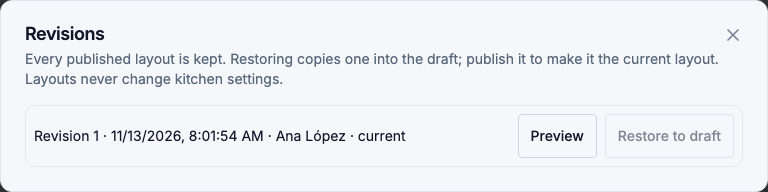
Restore an earlier layout
- Choose Revisions. Every published layout is listed with its number, date and who published it; the one in use is marked current.
- Choose Preview next to a revision to see it below the list.
- Choose Restore to draft on that same revision (it becomes available once you have previewed it).
Result: Revision … is now the draft. Publish it to make it the current layout. If you had unsaved changes, you are asked before they are replaced. Restoring never deletes a revision.
Change a station's output
- Select the station.
- Choose Output settings. The form opens in the inspector.
- Change Output type, Print delivery and the other fields, then choose Save.
Result: Output configuration saved. It applies from the next ticket. Cancel closes the form without saving.
Print a test ticket
- Select a station that prints (through the grouped bridge, or a printer with a printer URL).
- Choose Test print.
Result: a test ticket is sent to that station's printer, and a message confirms it. Stations that don't print have no Test print button.
Pair a kitchen screen
- Select the station.
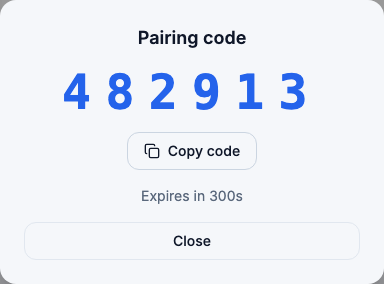
- Choose Pair a screen. A Pairing code appears, with Copy code and the time left.
- On the kitchen screen, type the code.
- Choose Close.
Result: the screen is paired to the station and appears under its paired devices. The code works once and expires after 10 minutes; while the dialog is open, a new code replaces it when it runs out.
To pair a Print Bridge or connect a Web Printer, use Kitchen Stations.
Rename or unpair a device
- Select the device. The inspector shows its type, station, status and Device ID.
- To rename it, change Device name and choose Rename. Device renamed confirms it.
- To unpair it, choose Unpair this device, then confirm in Unpair this device?
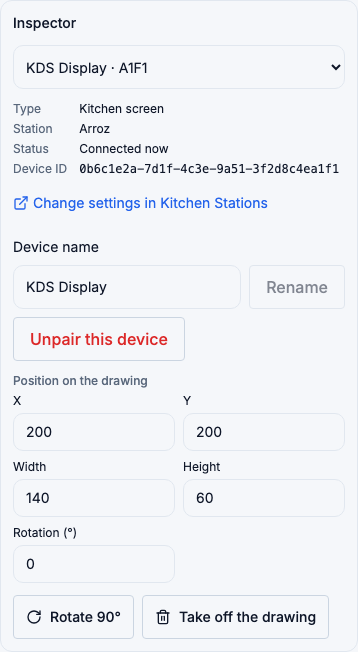
An unpaired device stops receiving tickets at once. It can't be undone: the device must be paired again with a new code. Don't unpair a screen in the middle of service unless it is lost or broken.
Every pairing, rename and unpairing is recorded in the activity log with who did it. Pairing codes and device keys are never recorded.
Change routing
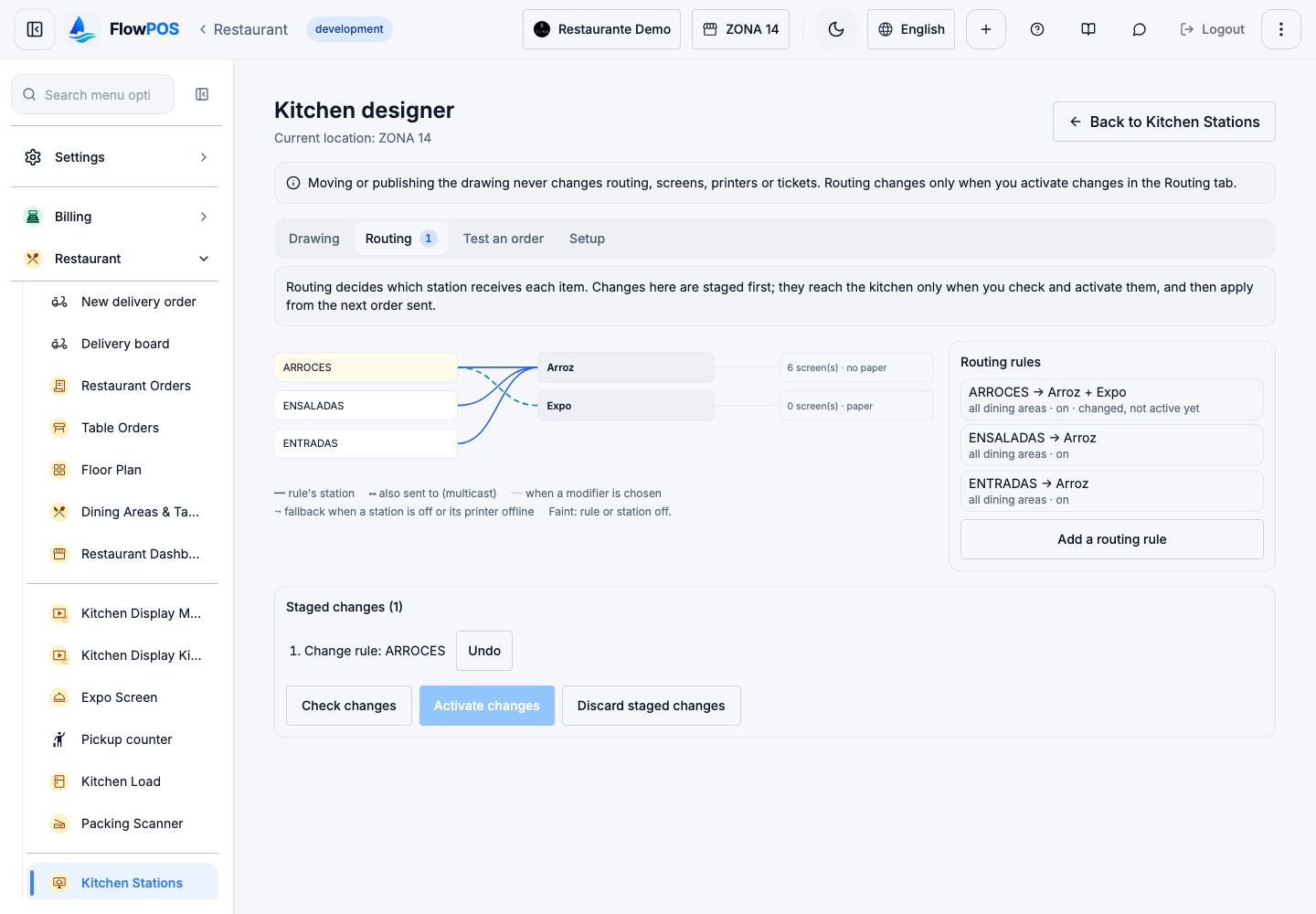
- Open the Routing tab.
- Choose a rule in Routing rules or on the graph, or choose Add a routing rule. The form opens: Edit routing rule or New routing rule.
- Fill in the form (see Routing rule), then choose Add to changes.
- Repeat for every change you need. Each change is listed under Staged changes (…), and the rule list marks it new, not active yet, changed, not active yet or to be removed.
Result: the changes are staged, not active. The kitchen keeps working as before.
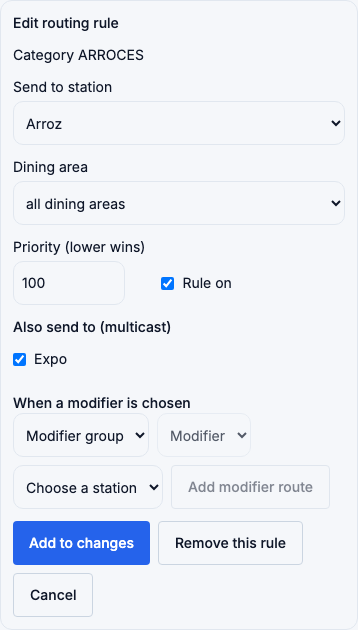
To remove a rule, open it and choose Remove this rule; it is staged like any other change. To take back one staged change, choose Undo next to it. To drop them all, choose Discard staged changes.
On the graph, a solid line is the rule's station, a dashed line is also send to, a dotted line is a modifier route, and an orange line is a fallback. Faint lines are rules or stations that are off. Each station shows its number of screens and whether it prints paper.
Check and activate routing changes
- Choose Check changes. The Where items go table lists each affected item, where it goes Now and After activation.
- Read the table. If something is wrong, change the rule and check again.
- Choose Activate changes.
- Read Activate … routing change(s)? and choose Activate changes.
Result: Routing changes activated. They apply from the next order sent to the kitchen. Each change is recorded in the activity log.
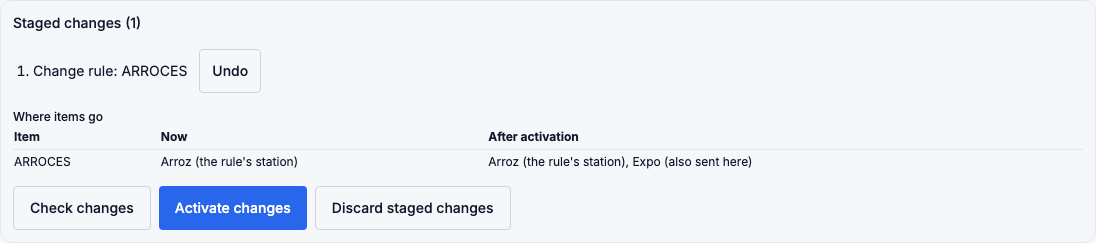
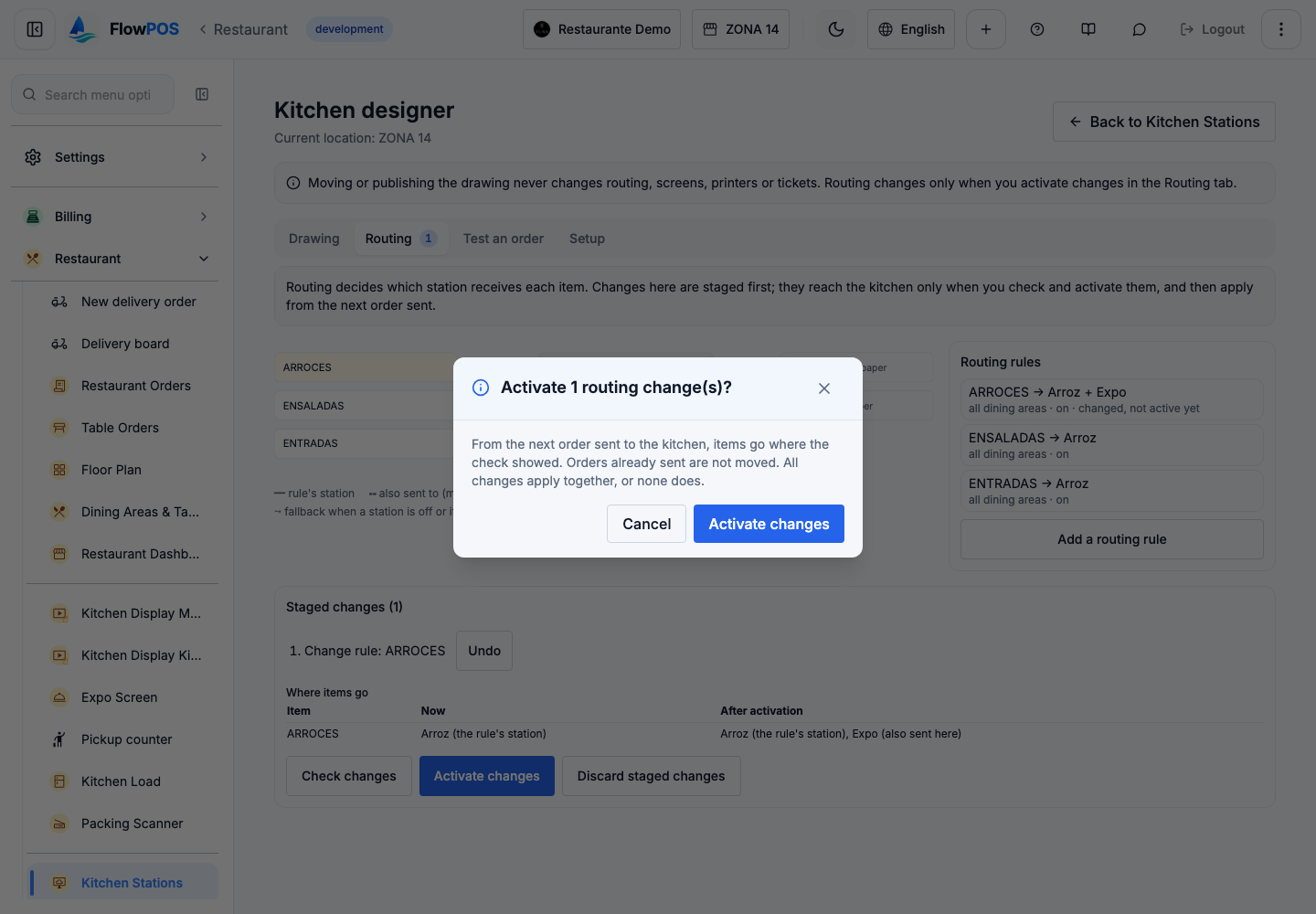
Your changes apply together, or none does. Orders already sent to the kitchen are not moved. Activate changes stays disabled until you have checked the current staged changes: any edit after the check needs a new check.
If the server refuses a change, you see Change N was refused: … and nothing is activated. Correct that change, check again and activate.
Staged routing changes are not saved anywhere until you activate them. If you leave the designer or reload the browser page, they are lost, and no warning is shown. Activate or discard them before you leave.
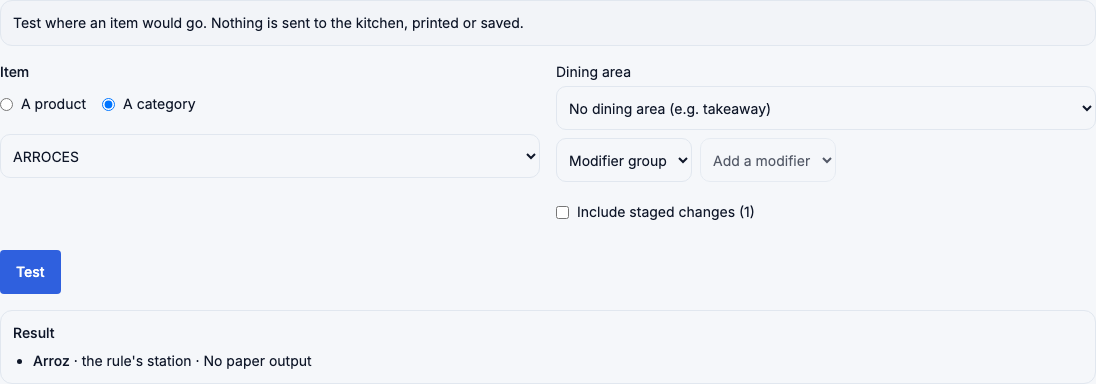
Test where an item goes
- Open Test an order.
- Choose A product or A category, then the product or category.
- Choose a Dining area, or No dining area (e.g. takeaway).
- Optionally, add modifiers with Add a modifier.
- Turn Include staged changes (…) on to test what isn't active yet, or off to test the kitchen as it is now.
- Choose Test.
Result: under Result, each station that would receive the item and why — the rule's station, also sent here, because of a modifier, fallback or branch default station — and what was skipped, such as a station that is off. nowhere — sending would fail means no station would receive it. Nothing is sent to the kitchen, printed or saved.
Follow the setup checklist
Open Setup. Each step shows whether it is done and what is missing, read from your real data, and its button opens the place where you do it:
- Create your stations — in Kitchen Stations.
- Place them on the drawing — counts the stations not on the drawing.
- Pair screens, Print Bridges and printers — counts screens-only stations with no screen.
- Send products and categories to stations — counts active stations that receive nothing.
- Test an order — done once you run a test while the page is open.
- Activate routing changes — counts staged changes not active yet.
When two people edit at once
- On the drawing: FlowPOS keeps the first person's changes. The second sees Someone else changed this layout. Reload to see their version; your unsaved changes will be lost. and chooses Reload.
- In routing: if someone activated routing changes or changed a rule in Kitchen Stations after you started, activation stops with Someone changed this branch's routing after you started… Your staged changes are kept; reload, check and activate again.
- If a station is deleted or a device unpaired while you edit, the designer takes it off the drawing and says how many were removed.
Agree on one person changing a branch's kitchen at a time.
What you can and cannot do
| Action | Allowed? | Conditions or restrictions |
|---|---|---|
| Open the designer | Yes | Owner, admin, administrator or store manager; module on; assigned to the branch |
| Draw, move, resize, rotate | Yes | Saved as a draft automatically |
| Publish a layout | Yes | There is a draft. Changes nothing in the kitchen |
| Discard the draft | Yes | Can't be undone |
| Restore an earlier layout | Yes | It becomes the draft; publish to use it |
| Delete a published layout revision | Not available | Every revision is kept |
| Change a station's output, test-print, pair a screen | Yes | Takes effect when saved |
| Rename a device | Yes | 1 to 80 characters |
| Unpair a device | Yes | Immediate; can't be undone |
| Add, change or remove a routing rule | Yes | Staged first; active only after Activate changes |
| Change what an existing rule routes | Not available | Remove the rule and add a new one |
| Activate routing changes | Yes | Only after Check changes; all or none |
| Undo an activation | Not available | Stage the opposite change and activate it |
| Choose a station's fallback station | Not available | See Fallback stations |
| Create, rename, deactivate or delete a station | Not here | Restaurant → Kitchen Stations |
| Pair a Print Bridge or connect a Web Printer | Not here | Restaurant → Kitchen Stations |
| Move orders already sent to the kitchen | Not available | Routing applies to new sends only |
| Use the designer offline | Not available | It needs a connection |
How changes move through the designer
The layout (drawing):
 No layout ──(first change)──▶ Draft ──(Publish)──▶ Current layout (revision 1)
                                ▲  │                        │
         (Restore to draft) ────┘  └─(Discard draft)──▶ back to the current layout
                                                            │
                            (new changes, Publish) ──▶ revision 2, 3, …
There is one draft per branch, shared by everyone who edits it. Published revisions are never changed.
Routing:
 Edit a rule ──(Add to changes)──▶ Staged ──(Check changes)──▶ Checked
                                     ▲                            │
                     (any new edit) ─┘           (Activate changes, confirm)
                                                                  ▼
                                               Active from the next order sent
A staged change can be undone at any time before activation. Once active, a rule stays active until another activated change turns it off or removes it.
Effects on other modules
| What you do | Effect | When |
|---|---|---|
| Draw, save, publish, restore or discard a layout | Only the drawing changes. Routing, screens, printers, tickets, orders and stock are not affected | — |
| Stage, check or test routing | Nothing changes | — |
| Activate routing changes | New kitchen tickets go to the stations shown by the check: rule stations, copies to also send to stations, modifier stations, fallbacks. Each receiving station gets its own ticket and, if it prints, its own paper | From the next order sent to the kitchen; tickets already sent stay where they are |
| Save output settings | Whether and how the station's tickets print | From the next ticket |
| Pair, rename or unpair a device | Which screens receive the station's tickets, and their names in Kitchen Stations | Immediately |
| Any of the above except drawing | Recorded in the activity log with who did it | Immediately |
Routing decides where a ticket is shown or printed. It doesn't change the order, its prices, the bill, payments, invoices or stock.
Fallback stations
A station can have a fallback station, drawn in orange on the graph:
- If the station is off, its items go to the fallback station instead.
- If the station prints on a printer and that printer is reported offline, the fallback also receives a copy.
- If the fallback is off too, nothing stands in, and a test says so.
There is no screen to choose a fallback station yet, in the designer or in Kitchen Stations. The graph and Test an order show it when a station has one.
The branch default station
When no rule matches an item, FlowPOS sends it to the branch's default station, if one is set; a test shows branch default station. If there is no valid default station, sending that item to the kitchen fails, and a test shows nowhere — sending would fail. There is no screen to choose the default station; give every category a rule instead.
Examples
Setting up a new kitchen. A new branch has two stations, Hot line and Salads, each with a kitchen screen. The manager opens Setup, places both stations on the drawing, chooses Pair a screen on each and types the codes on the screens. In Routing, they add a rule for each category — MAINS → Hot line, SALADS → Salads — and choose Check changes. They test a Caesar salad in Test an order with Include staged changes on, see it going to Salads, then choose Activate changes. The next order goes to the right screens.
Adding an expo screen. A busy branch wants an expo screen to see every rice dish as well. The manager opens the ARROCES → Arroz rule, ticks Expo under Also send to (multicast), chooses Add to changes and Check changes. The table shows ARROCES: now Arroz, after activation Arroz, Expo. They activate at 4 p.m., between services. From the next order, each rice dish shows on both Arroz and Expo; orders sent before 4 p.m. stay only on Arroz.
A refused activation. A manager stages a new rule DESSERTS → Pastry for all dining areas, but an active rule DESSERTS → Cold line already exists for all areas. The rule list marks both duplicate, and activation shows Change 1 was refused: …. Nothing changed in the kitchen. The manager removes the old rule in the same set of changes, checks again and activates both at once.
Troubleshooting
| Problem | Possible cause | What to do |
|---|---|---|
| No Visual designer button, or Kitchen Stations is read-only | Your role, or the Kitchen Designer Module is off | Ask an owner for a manager role, or to turn the module on in Admin → Modules |
| Could not load this branch's kitchen layout… or …stations, devices or routing rules… | You aren't assigned to the selected branch, or the connection failed | Check your branch assignment and connection, then choose Retry |
| Activate changes stays disabled | The current staged changes haven't been checked | Choose Check changes again after your last edit |
| Change N was refused: … | That change points outside the branch, names a station or modifier that no longer exists, or duplicates another active rule | Fix or undo that change, check again and activate |
| Someone changed this branch's routing after you started… | Someone else activated changes or edited a rule | Reload, check your staged changes again and activate |
| A test shows nowhere — sending would fail | No rule matches and there is no valid default station | Add a rule for that item or its category |
| Someone else changed this layout… | Another person saved the drawing | Choose Reload; your unsaved drawing changes are lost |
| … station(s) or device(s) were deleted or unpaired since this layout was saved, and were taken off it. | A station was deleted or a device unpaired | Nothing; the draft is saved without them |
| The layout has a value out of range: … | A size, position or label outside the limits | Correct the value (see Field reference) |
| Could not save the layout… | A connection problem | When the connection is back, choose Save draft |
| A screens-only station shows Screens only, yet a server print channel is set… | It was set to print from the server before this was refused | Open Output settings and choose No physical print or the grouped bridge |
| A screen is Not connected or Never seen | The screen is off, offline, signed out, or was never set up | Check the screen; pair it again if needed |
| My staged changes disappeared | You left the page or reloaded it before activating | Stage them again; activate before leaving |
| Check changes doesn't list every product | The check lists up to 20 affected items | Test the others one by one in Test an order |
Best practices
- Activate routing changes between services, not at the peak.
- Always choose Check changes, and use Test an order for the products cooks ask about most, before activating.
- Give every category a rule, so nothing depends on a default station.
- Avoid two rules that overlap; use Priority only when you mean one to win.
- Rename screens after the station and position (KDS Arroz 1, KDS Arroz 2), so the list says which is which.
- Unpair a device only when it is lost, broken or replaced; re-pairing needs someone at the screen.
- One person changes a branch's kitchen at a time.
These are recommendations; the rules FlowPOS enforces are listed in What you can and cannot do.
Frequently asked questions
Does publishing the drawing change where tickets go? No. Only Activate changes in the Routing tab changes routing.
Do I need to save the drawing? It saves itself a moment after each change. Save draft saves at once.
When do routing changes reach the kitchen? From the next order sent to the kitchen after you activate them. Orders already sent are not moved.
Can I undo an activation? Not with one button. Stage the opposite changes (for example, untick Expo again), check and activate them.
What happens if an item has no rule? It goes to the branch's default station, if there is a valid one. Otherwise sending that item fails, so give every category a rule.
Can one item go to two stations? Yes. Tick the other station under Also send to (multicast). Each station gets its own ticket.
Does unpairing a screen delete its tickets? No. The screen stops receiving tickets; tickets and orders are not deleted.
Why can't a screens-only station print from the server? The server never prints for a KDS screen only station. If such a station should also print, use a Print Bridge through Grouped bridge, or change its output type to include a printer.
Can I use it on a tablet? Yes. Dragging, the handles, pinch to zoom and the number fields work by touch. On a small screen, the number fields are the most precise way to place things.
Related
- Restaurant → Kitchen Stations — create stations, pair Print Bridges, connect Web Printers. Open Kitchen Stations
- Admin → Modules — turn on the Kitchen Designer Module. Open Modules
- Floor plan designer, the same kind of drawing for the dining room.