Labor allocation and settings
Attendance tells FlowPOS which branch someone worked at. People who don't clock in, such as a general manager, an accountant, or a chef who covers two branches, need a rule instead, or their cost belongs to no branch.
Restaurant → Labor allocation. Open Labor allocation
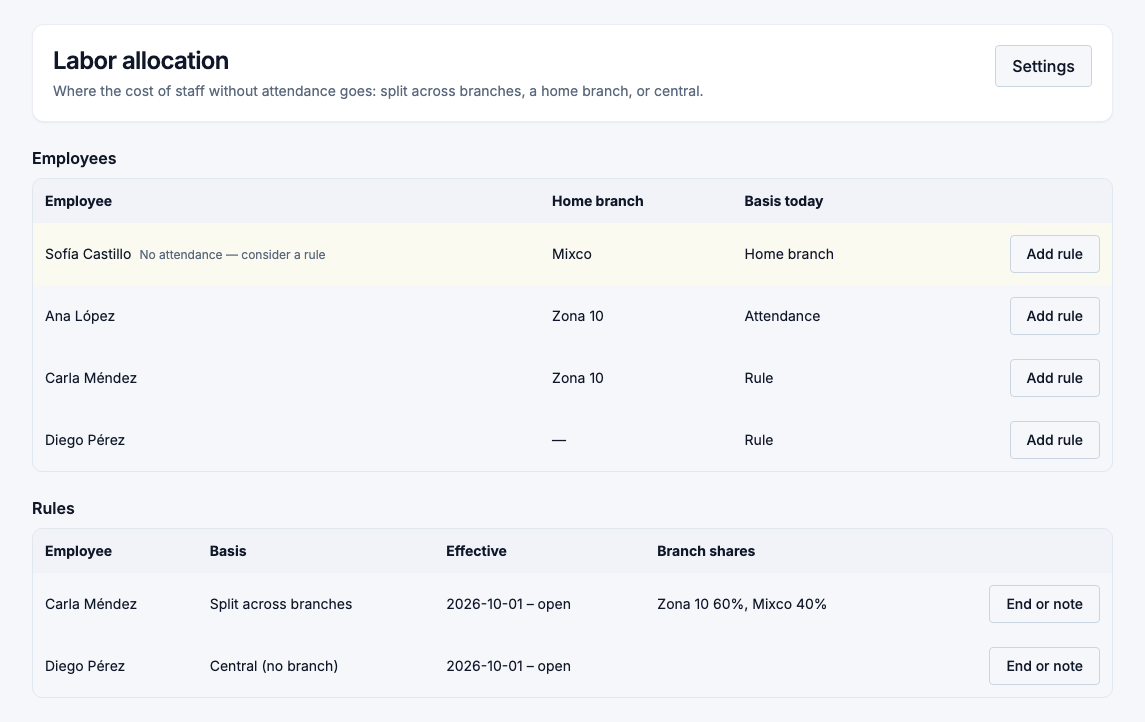
The employee list
Every employee appears with their home branch and the basis today, which is how their cost is placed right now:
- Attendance: by the minutes they clocked at each branch.
- Rule: by an allocation rule.
- Home branch: no attendance and no rule, so the cost goes to their home branch.
- Unallocated: no attendance, no rule and no home branch. The cost is still counted in the total, but no branch carries it, and the labor report is incomplete until you fix it.
Employees with no attendance in the last 90 days who are on a home branch or unallocated are highlighted and listed first: No attendance — consider a rule.
Add a rule
- Choose Add rule next to the employee.
- Choose a Basis:
- Split across branches: add each branch and its percent. The shares must add up to exactly 100 %.
- Home branch: always their home branch.
- Central (no branch): counted in the business total, on its own Central line.
- Set From and, if the rule ends, To. Leave To empty for a rule with no end date.
- Add a Note if it helps, then Save.
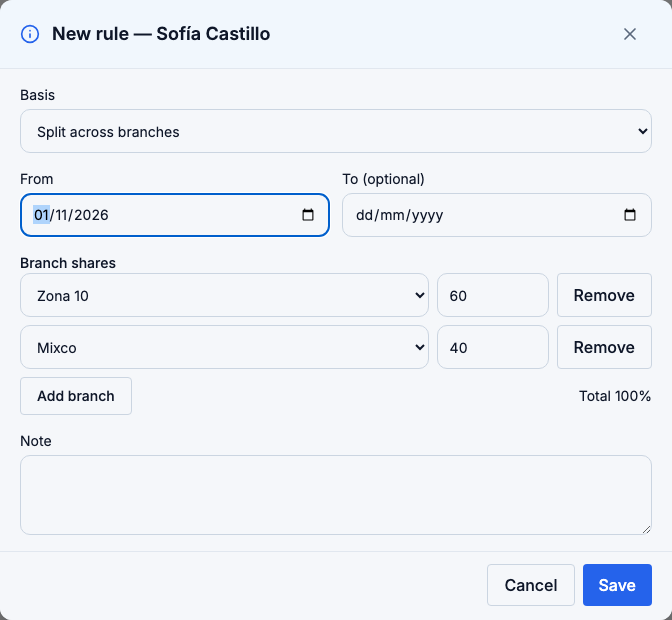
The cost of a person on a rule is spread evenly over the pay period, so a report for part of a month takes exactly that part.
Change a rule
A rule that has not started can be edited or deleted.
A rule that is already in effect can only get an end date or a note: choose End or note. To change the split, end the rule and add a new one from the next day. Earlier periods keep the rule they were calculated with, so last month's report doesn't change because you changed this month's split.
Two rules of the same employee can't cover the same days.
Labor settings
Choose Settings at the top of the page.
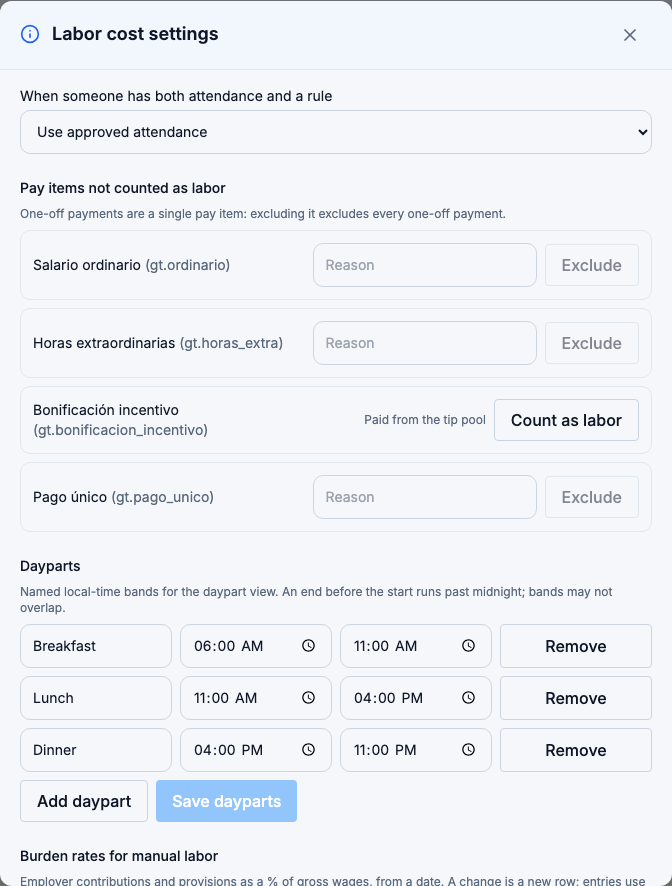
When someone has both attendance and a rule
- Use approved attendance (the default): a person with approved attendance is placed by it; the rule is used when there is none.
- Use the allocation rule: the rule wins even on days with attendance. Use this when someone clocks in at one branch but works for several.
Pay items not counted as labor
Every earning pay item in your payroll is listed. Choose Exclude and give a Reason for anything that is not a labor cost for you. For example, a bonus paid out of the tip pool. Choose Count as labor to bring it back.
One-off payments are a single pay item: excluding it excludes every one-off payment.
Dayparts
Name the bands you want for the daypart view of the labor report, such as Breakfast 06:00–11:00, Lunch 11:00–16:00, Dinner 16:00–23:00. A band whose end is before its start runs past midnight. Bands can't overlap. Choose Save dayparts when you are done.
Burden rates for manual labor
Only for manual labor: your employer contributions and provisions as a percent of gross wages, from a date. A change is a new row with a new date, so entries keep the rate of their first day.
Who can do this
Owners, administrators and finance managers. Every change is recorded in the activity log.