Create and edit a recipe
Start a recipe
From the recipe list:
- Open Restaurant → Recipes. Open Recipes
- Choose New recipe, search for the dish (or a prepared item such as a sauce), and choose Create recipe. If the dish is already in the list without a recipe, you can also choose Create recipe on its row.
Or, while building a menu: open Restaurant → Menus, select the menu item, and go to the Recipes / BOM tab. Open full editor takes you to the same screen as the recipe list.
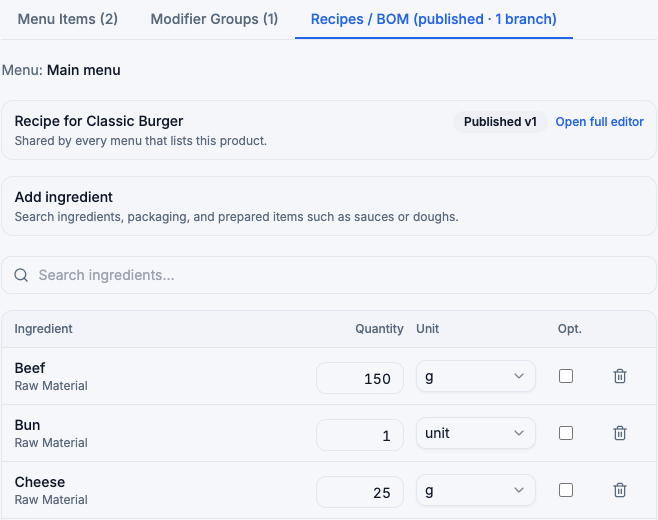
The recipe starts as a draft. Nothing changes at the register until you publish it.
Yield
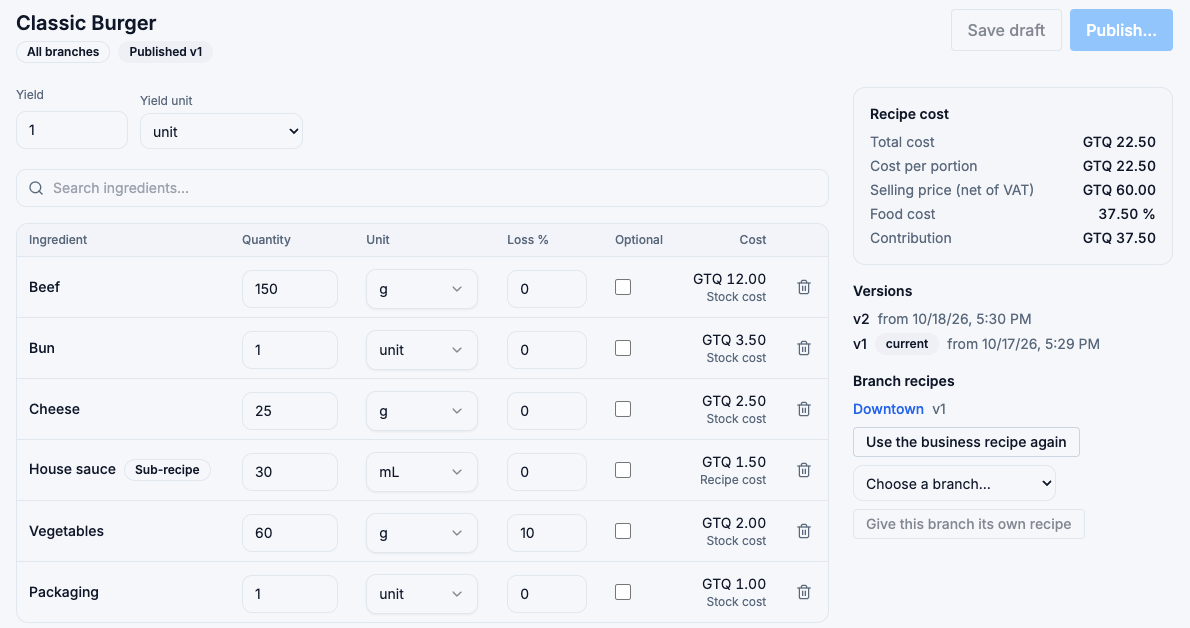
Yield is how much the recipe makes, in the Yield unit — usually 1 unit (one portion) for a dish. For a batch, enter the batch size: a sauce that makes 2 litres has a yield of 2 L. The cost per portion is the total cost divided by the yield.
Add ingredients
- In Search ingredients…, type the name and choose the product. You can add raw materials, packaging and prepared items (components) — not other dishes.
- Set the Quantity and the Unit you measure it in. You can measure in a different unit from the one you stock it in — for example 150 g of beef you stock in kg.
- If part of the ingredient is lost in preparation (peeling, trimming, cooking), enter the Loss %. With 60 g and 10 % loss, FlowPOS takes 66.67 g from stock so that 60 g end up in the dish.
- Tick Optional for ingredients the customer may leave out (see below).
Each line shows its Cost and where that cost comes from:
- Stock cost — the ingredient's own cost.
- Recipe cost — a prepared item costed from its own recipe (marked Sub-recipe). See Sauces, doughs and other prepared items.
Optional ingredients
An optional ingredient appears at the register when the dish is ordered, and the cashier can turn it off ("no onion"). If it's turned off, it is not taken out of stock. Optional ingredients are included in the recipe cost.
Read the recipe cost
The Recipe cost panel updates as you type:
- Total cost and Cost per portion.
- Selling price (net of VAT) — the dish's price with VAT taken out.
- Food cost — cost per portion as a percentage of the net price.
- Contribution — net price minus cost per portion.
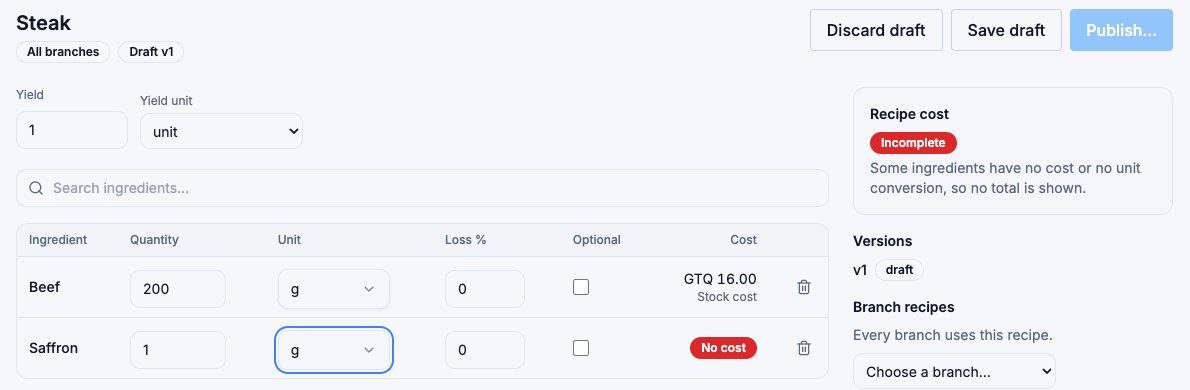
If the panel says Incomplete, at least one line has no cost. The line shows why:
| On the line | What it means | What to do |
|---|---|---|
| No cost | The ingredient has no cost yet. | Receive it at a cost, or set its cost on the product. |
| No unit conversion | FlowPOS can't convert the recipe unit to the stock unit (for example grams to kilograms). | Use the stock unit in the recipe, or ask your administrator or FlowPOS support to add the conversion for your business. |
| No published recipe | A prepared item has no cost of its own and no published recipe. | Publish the prepared item's recipe. |
Save and publish
- Save draft keeps your changes without affecting the register.
- Discard draft throws the draft away.
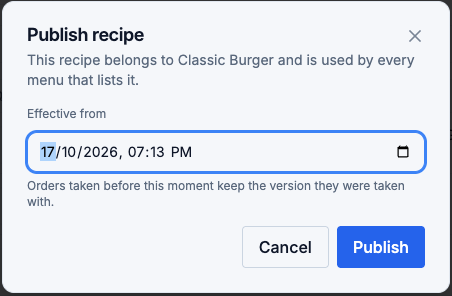
- Publish… asks for the date and time the recipe takes effect (Effective from), then makes it the recipe used for new orders from that moment.
Publishing also marks the dish as Requires recipe (see The recipe list).
If publishing is refused, the dialog tells you why — for example an ingredient whose unit can't be converted, a loss of 100 % or more, or a recipe that ends up using itself through a sauce.
Published recipes can't be changed. Editing one starts a new draft version; the published one keeps working until the new one takes effect. See Versions and branch recipes.