Manual labor
If you pay your staff outside FlowPOS, you can still see labor and prime cost: enter the hours and gross wages per branch, and FlowPOS adds your employer burden.
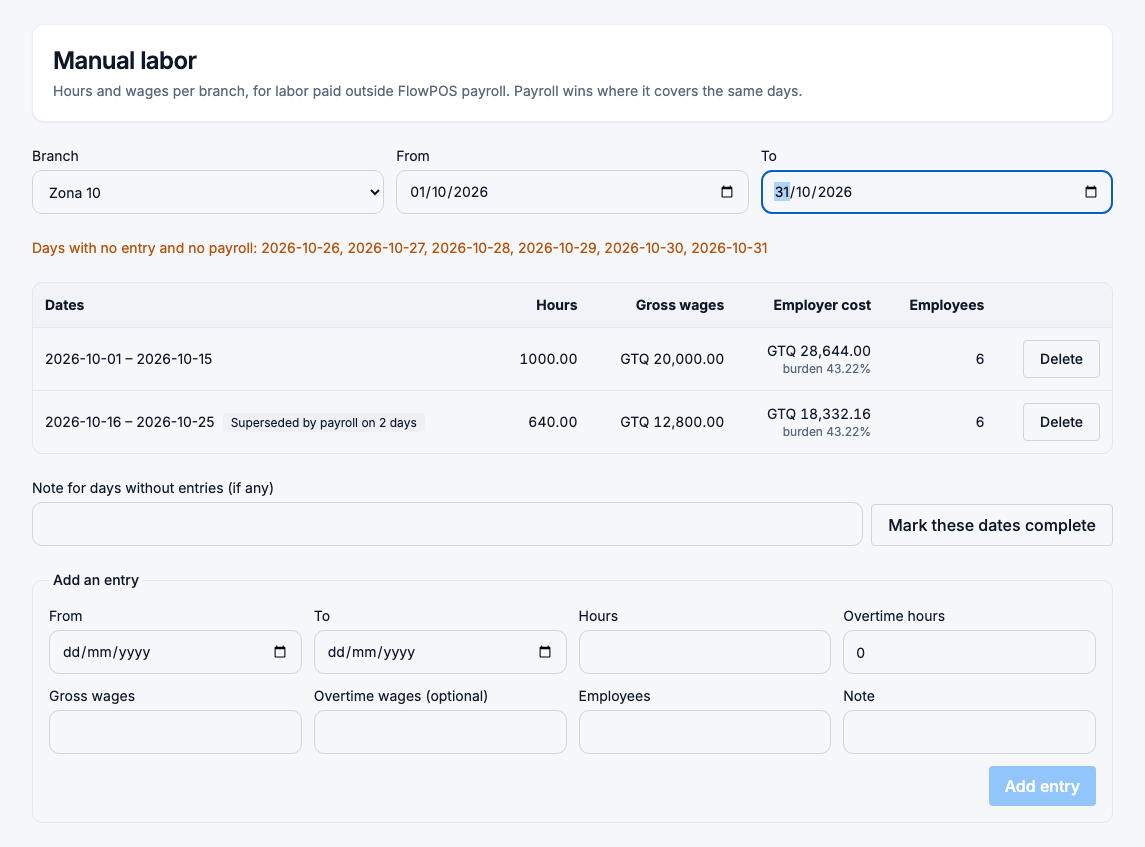
Restaurant → Manual labor. Open Manual labor
Before you start
Set your burden rate in Labor settings: employer contributions and provisions as a percent of gross wages. Without one, entries are costed at their gross wages only.
Add an entry
- Choose the Branch.
- Under Add an entry, fill in:
- From and To: up to 31 days.
- Hours and Overtime hours.
- Gross wages and, if you know it, Overtime wages.
- Employees: how many people the entry covers. It is required, because it decides who can see the amount (see Who sees what).
- A Note, if useful.
- Choose Add entry.
The Employer cost is the gross wages plus the burden rate in effect on the entry's first day. For example, Q 20,000.00 with a burden of 43.22 % costs Q 28,644.00.
Mark the dates complete
Manual labor is final only once you say nothing is missing. Choose the dates at the top, check the list of Days with no entry and no payroll, then Mark these dates complete.
If some days really had no labor (a closed day, for example), write it in Note for days without entries before you mark the dates complete.
Until then, the labor report shows those dates as Incomplete.
When FlowPOS payroll covers the same days
Where FlowPOS payroll has cost for a branch on a day, final or not, payroll wins and your entry is not added. The entry is marked Superseded by payroll on N days, so the cost is never counted twice. This lets you move to FlowPOS payroll in the middle of a month.
Change or delete an entry
Delete the entry and add it again. You can't change entries on dates covered by a finalized prime cost period: reopen it first.
Who can do this
Owners, administrators and store managers, for their branches.