Versions and branch recipes
Versions
Every time you publish a recipe, it becomes a new version (v1, v2…). The Versions panel in the editor lists them with the date each takes effect; the one in use now is marked current.
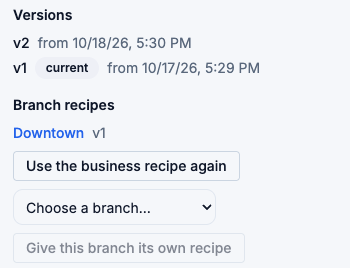
- Editing a published recipe starts a draft of the next version. The current version keeps being used until the new one takes effect.
- When you publish, choose Effective from. Use a future date to prepare a change ahead of time — for example a new portion size from Monday.
- An order keeps the version it was taken with. If you publish a change while an order is open, that order is still deducted and costed with the version that applied when it was taken.
Branch recipes
The recipe you create applies at all branches. If one branch makes a dish differently — a bigger portion, a local ingredient — give that branch its own recipe:
- Open the dish's recipe.
- Under Branch recipes, choose the branch in Choose a branch… and choose Give this branch its own recipe.
- FlowPOS copies the recipe that applies today into a draft for that branch. Open it from the list under Branch recipes, make your changes, and Publish….
Orders prepared at that branch now use its recipe; every other branch keeps using the business recipe. The branch recipe has its own cost, so the same dish can have a different food cost at that branch.
To go back, open the branch recipe in the dish's recipe and choose Use the business recipe again.
You can only give a branch its own recipe if you are assigned to that branch. If you aren't, FlowPOS tells you You are not assigned to this branch — ask an administrator to assign you, or to make the change.
If the business recipe gets a newer version after a branch copied it, the branch recipe shows The business recipe has a newer version than the one this branch copied, so you can decide whether to update the branch too.