Inventory adjustments
An inventory adjustment adds stock to, or removes stock from, a branch when the change did not come from a sale, a purchase or a transfer. Each adjustment is a numbered document that says what changed, by how much, and why, so the kardex and your reports can always explain the stock you have.
Inventory → Inventory Adjustment. Open Inventory Adjustments
| Module | Inventory (the business must have the Inventory module turned on) |
| Who uses it | Store managers, inventory and warehouse staff, administrators and owners |
| What it changes | Stock on hand at the branch you are working in, and its value |
When to use it
Use an adjustment for a stock change that has no other document:
- Found stock. A box of 12 shampoo bottles turns up in the back room and was never counted: an Increase.
- Damage or breakage. A customer knocks over 3 glass jars: a Decrease, type Damage.
- Expired goods. 8 yogurts passed their date: a Decrease, type Expiration.
- Giveaways. 20 sample sachets handed out at an event: a Decrease, type Promotional.
- Internal use. 2 rolls of receipt paper taken for the office: a Decrease, type Internal Use.
- A correction you have already verified. You recounted a shelf and it holds 4 fewer units than FlowPOS shows: a Decrease, type Manual.
Use another feature instead when one fits:
| Situation | Use instead |
|---|---|
| Stock arrived from a supplier | Goods received notes / purchases |
| Stock moved between your branches | Transfers |
| A full or partial physical count | Inventory counts (they create the adjustments for you) |
| Restaurant food that spoiled, was dropped or sent back | Waste — it records the cost and feeds the food-cost report |
| Damaged goods you want to keep apart from sellable stock | Inventory → Damaged Items |
| The kardex says stock and its history disagree | Stock reconciliation |
Damage, Expiration, Promotional and Internal Use describe why stock changed. Every type moves ordinary sellable stock in the same way. A Damage adjustment does not move stock to a damaged area and is not recorded as restaurant waste.
Before you begin
- The Inventory module must be on for your business, and your role must show Inventory Adjustment in the Inventory menu.
- Pick the right branch first. The adjustment is recorded at the branch selected at the top of the app, and every line uses that branch. You must be assigned to that branch.
- The products must exist in your catalog. Products with sizes or colors need a variant chosen on each line.
- To move stock you need an approver role. Anyone with access can save a Draft. Saving as Ready or Posted is limited to an Owner, Admin, Administrator or Store Manager of the business.
- Lots and serial numbers. If you track a product by batch or serial number, have those numbers at hand (see Lots and serial numbers).
The screen
The page is titled Inventory Adjustments. At the top is the New Inventory Adjustment button, which clears the form for a new document. Below it are two tabs.
Search Existing Inventory Adjustments
This tab opens first. It finds adjustments already saved in your business, from every branch.
- Search box and Search button. Results load only when you choose Search.
- Created From / Created To: dates the document was created.
- Status, Adjustment Direction, Adjustment Type: choose a value to narrow the list, or Select an option to stop filtering on it.
- Clear Filters empties the search box and the dates; it does not reset the three drop-downs.
Each result shows Document Number, Adjustment Direction, Adjustment Type, Amount, Status and Created At. Click a column title to sort the current page. On each row, Select opens the document, Print Preview opens a printable view, and Options gives you Print Preview, Download PDF, Preview PDF and PDF Options. Under the list you can change Rows per page, Refresh the list or Print it.
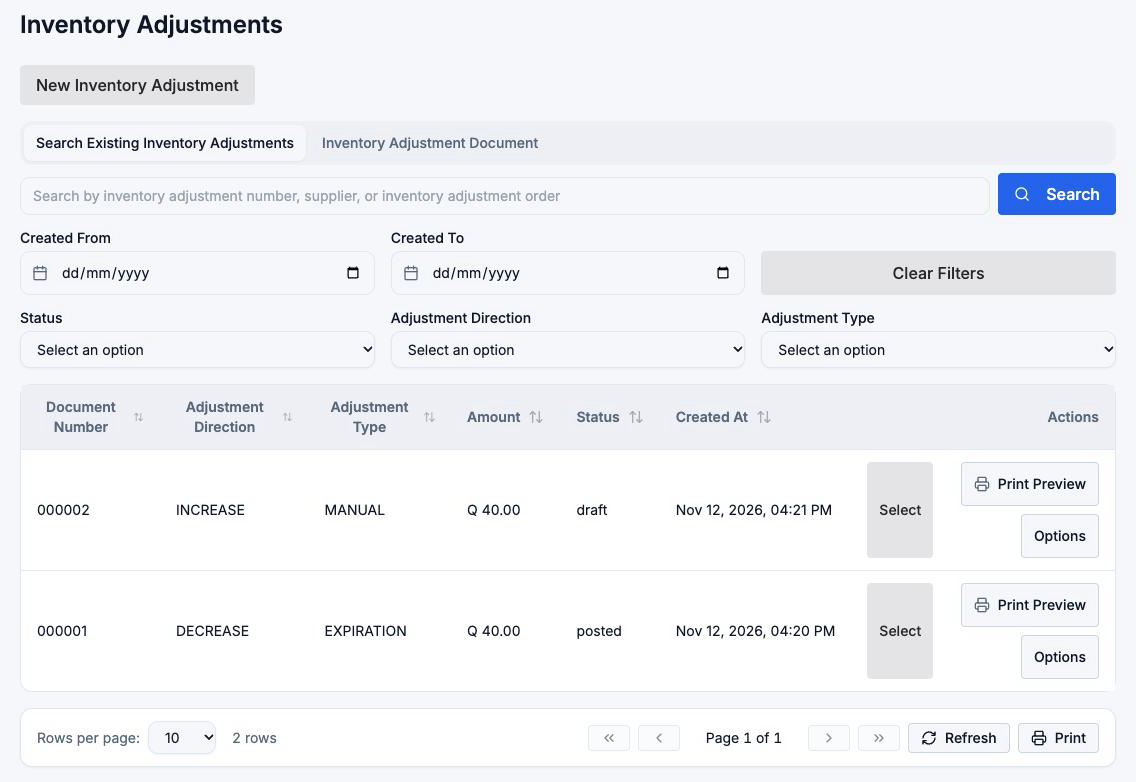
- The search box matches the branch name, not the document number, supplier or product, even though its hint mentions them. To find one document, search with an empty box and sort by Document Number.
- Created From and Created To currently make the search fail, and the list shows No results found. Leave them empty and use the other filters or sorting.
- Direction, type and status appear as stored codes (for example
DECREASE,posted) rather than translated words.
Inventory Adjustment Document
The form itself. Once a document is saved, a Print Preview button and an Options menu appear at the top right, with the same print and PDF actions as in the search list.
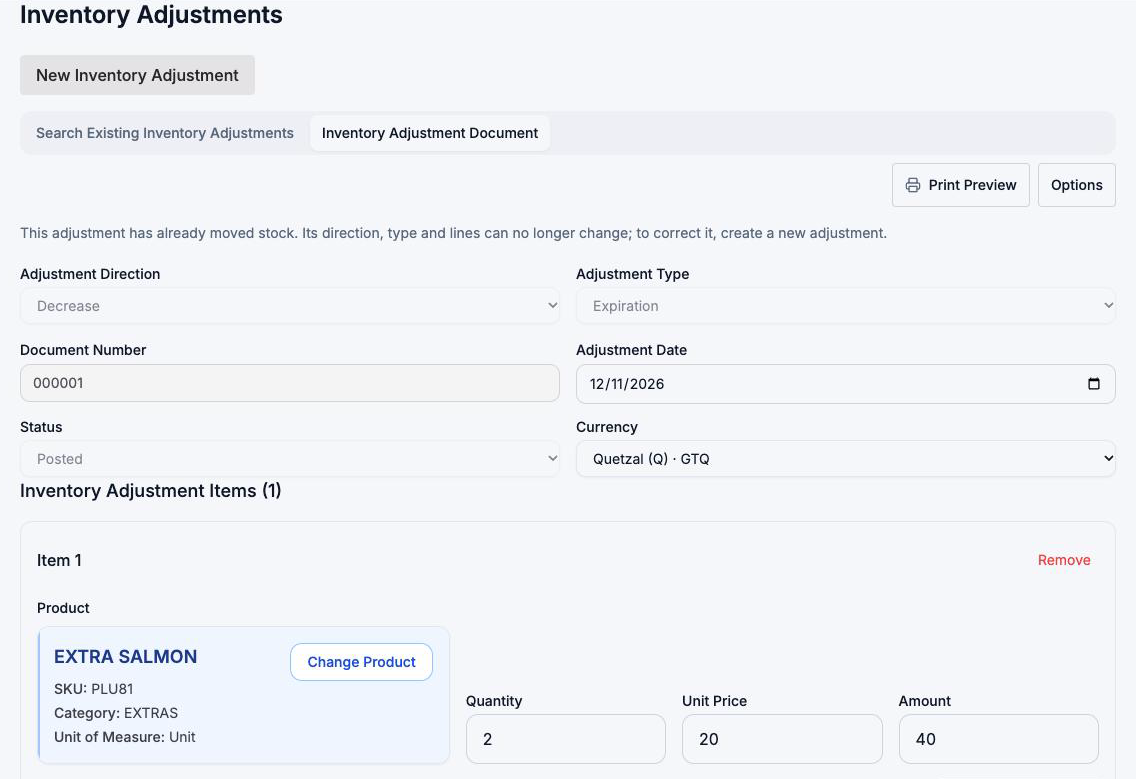
A line of text above the fields reminds you when stock moves:
- On a new or draft document: "Stock moves when you save as Ready or Posted…"
- On a document that has already moved stock: "This adjustment has already moved stock…", and the fields that can no longer change are locked.
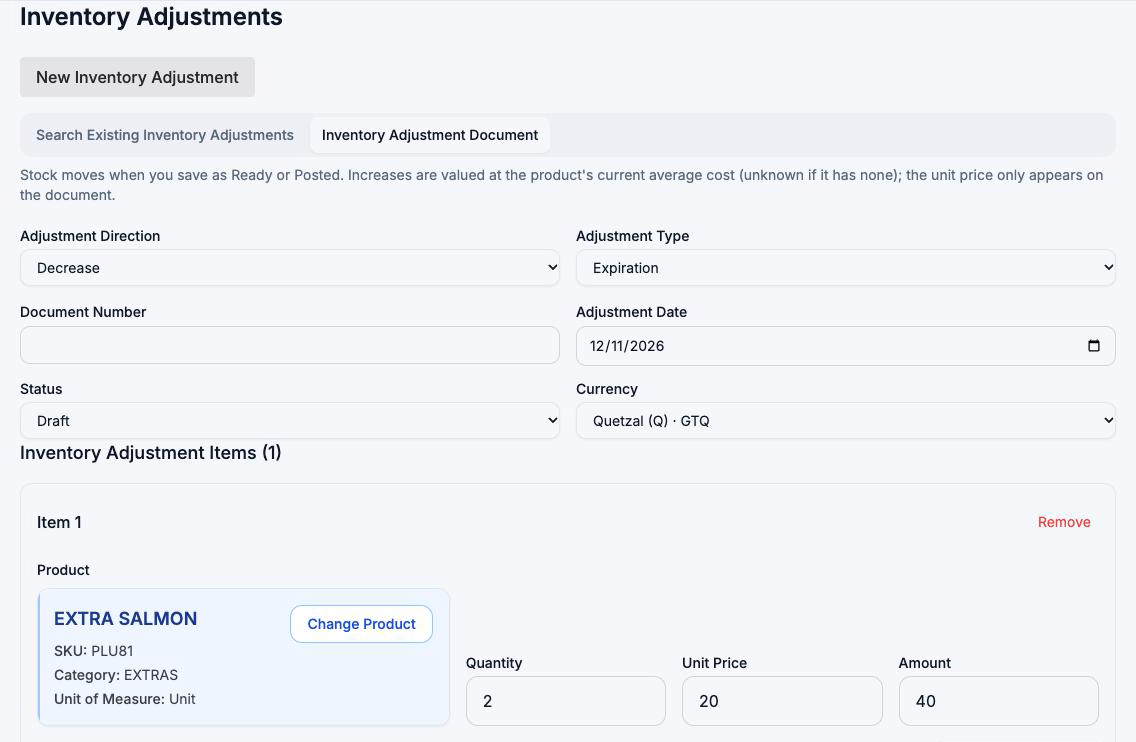
Fields
Document
| Field | What it means | Required | Rules | Example |
|---|---|---|---|---|
| Adjustment Direction | Increase adds stock; Decrease removes it. | Yes | Starts as Increase. Locked once stock has moved. | Decrease |
| Adjustment Type | Why stock changed: Manual, Damage, Expiration, Promotional, Internal Use. | Yes | Starts as Manual. Locked once stock has moved. | Expiration |
| Document Number | The adjustment's number. | — | FlowPOS assigns it when you first save; anything typed here on a new document is ignored. Read-only afterwards. | — |
| Adjustment Date | The date printed on the document. | Yes | Starts as today. Any date is accepted. It does not backdate the stock movement: stock changes at the moment you save as Ready or Posted. | 2026-11-12 |
| Status | Where the document is in its life (see Statuses). | Yes | Only the statuses the document may move to are offered. | Draft |
| Currency | Currency of the unit prices on the document. | Yes | Starts as your business's default currency. Choosing another applies its exchange rate. | GTQ |
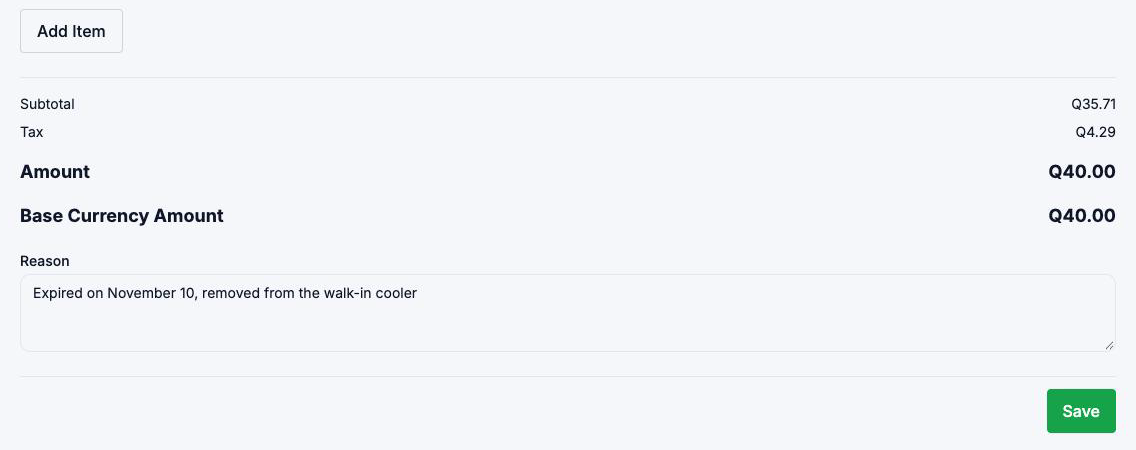
| Reason | Free text explaining the adjustment. | No | Printed on the document. Can still be edited after stock has moved. | "Jars broken during restock, aisle 4" |
Lines (Inventory Adjustment Items)
Each line is titled Item 1, Item 2… Use Add Item for another line, and Remove on a line to delete it (the last line can't be removed).
| Field | What it means | Required | Rules | Example |
|---|---|---|---|---|
| Product | The product to adjust. Type at least 2 characters to search. | Yes | If the product has variants, a picker opens to choose one; Change lets you pick another. | Strawberry yogurt 170 g |
| Quantity | How many units to add or remove, in the product's stock unit. | Yes | Must be greater than 0. Decimals are allowed (0.5 kg). | 8 |
| Unit Price | A price per unit, shown on the document. | Yes | Filled from the product's price when you pick it. Zero is accepted but triggers a warning. It does not decide what the stock is worth (see Effects). | 4.50 |
| Amount | Quantity × unit price, with the product's taxes. | — | Calculated; read-only. | 36.00 |
| Inventory Details | Batch or serial numbers for this line. | Depends on the product | See Lots and serial numbers. | — |
| Item Notes | A note for this line. | No | "Expired 10 Nov" |
Below the lines, the totals show Subtotal, Tax, Amount and Base Currency Amount, followed by the Reason and the Save button. Save stays pinned to the bottom of the screen while you scroll.
Lots and serial numbers
Add Inventory Detail adds a row with Quantity, Batch Number, Serial Number, Production Date and Expiration Date. The summary shows Total Quantity, Allocated Quantity and Remaining Quantity, and warns "Quantity allocated exceeds total quantity" when the rows add up to more than the line. That warning does not stop the save.
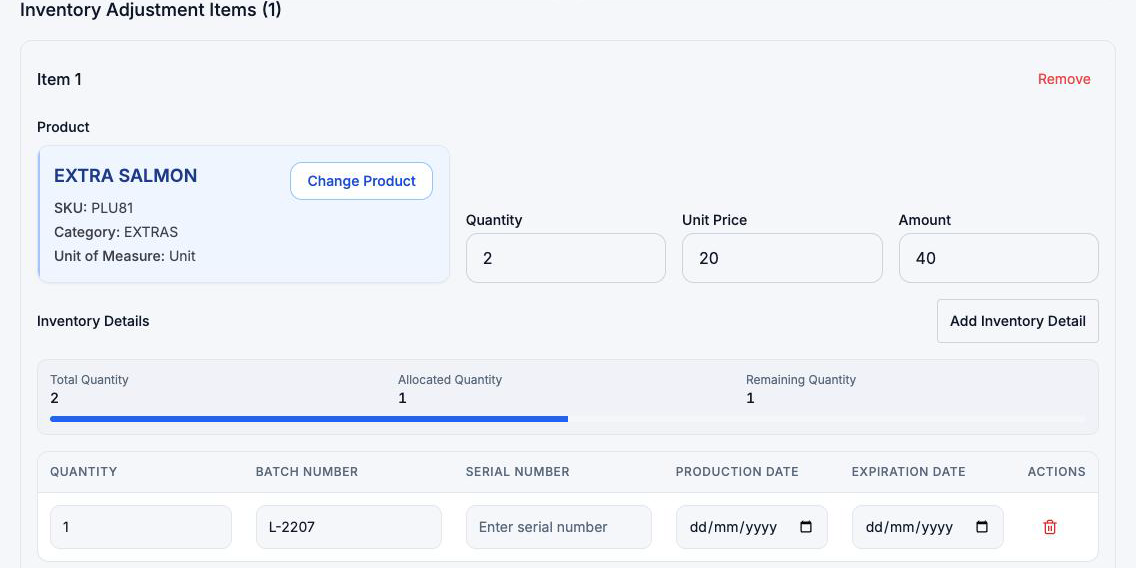
What FlowPOS checks when stock moves:
- Increase: each row needs the identifier its product is tracked by — a serial number for serial-tracked products, a batch number for batch-tracked ones, and either one for products with no tracking. The rows are recorded as the product's lots at this branch.
- Decrease: each row must name a batch or serial number that already exists at this branch for this product and still holds at least that quantity. Otherwise the save is refused and nothing changes.
- A line with no detail rows moves the product's stock without touching any lot.
How to…
Create and post an adjustment
Goal: record a stock change and move the stock in one step. You need: an approver role (Owner, Admin, Administrator or Store Manager).
- Check the branch selected at the top of the app.
- Open Inventory → Inventory Adjustment and choose New Inventory Adjustment (or open the Inventory Adjustment Document tab).
- Choose the Adjustment Direction and Adjustment Type.
- Check the Adjustment Date and Currency.
- On Item 1, search for the Product, choose the variant if asked, and enter the Quantity. Adjust the Unit Price if you want a different figure on the document.
- If the product is tracked by lot or serial, add its Inventory Details.
- Use Add Item for each further product.
- Write the Reason.
- Set Status to Posted (or Ready).
- Choose Save.
Result: "Inventory Adjustment created successfully". The document now has a number, the stock has changed, and the form locks the direction, type and lines. Check the result in the product's kardex.
Saving as Ready or Posted changes stock on the spot. The document can no longer be canceled, set back to draft, or deleted. To fix a mistake, create a new adjustment in the opposite direction.
Save a draft for someone else to approve
Goal: prepare an adjustment without moving stock — for example when a cashier or warehouse clerk records it and a manager posts it.
- Fill in the document as above, but leave Status on Draft.
- Choose Save.
Result: the document is saved with a number; stock does not change. A manager can then post it.
The lines are stored when a document is first saved. Changes you later make to the products, quantities, prices, lots or line notes of a saved draft are not kept, even though the screen confirms the update and shows your edits until you reload. If a saved draft's lines are wrong, set it to Canceled and create a new one.
Post a saved draft
You need: an approver role.
- Open the Search Existing Inventory Adjustments tab and choose Search.
- Find the draft (filter Status by Draft) and choose Select.
- Make sure the branch selected at the top of the app is the document's branch.
- Review the lines. Remember they are the lines as first saved.
- Set Status to Ready or Posted and choose Save.
Result: "Inventory Adjustment updated successfully" and the stock moves. If someone else posts the same draft at the same moment, the stock still moves only once; you may be asked to reload.
Confirm a Ready adjustment as Posted
A Ready adjustment has already moved its stock. Changing it to Posted records who confirmed it and when; it moves nothing more. Open it, set Status to Posted and choose Save (approver role needed).
Cancel a draft
- Open the draft.
- Set Status to Canceled and choose Save.
Result: the document stays on record as canceled and never moves stock. Canceling is final: a canceled document can't return to draft or be posted. Only drafts can be canceled.
Edit a saved document
| What | Draft | Ready / Posted | Canceled |
|---|---|---|---|
| Reason, Adjustment Date, Currency | Saved | Saved (approver role needed to save) | Saved |
| Direction, Type | Saved | Locked | Saved, but has no effect on stock |
| Lines | Not saved after the first save | Locked | Not saved |
| Status | Any status | Ready → Posted only | Stays Canceled |
Print or download the document
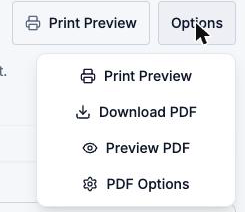
Use the Print Preview button for a quick printout, or open Options on a saved document or a search result:
- Print Preview opens a printable view.
- Download PDF saves the PDF.
- Preview PDF opens the PDF in a new tab.
- PDF Options sets page size, margins and similar settings.
Find an adjustment
- Open Search Existing Inventory Adjustments.
- Optionally choose a Status, Adjustment Direction or Adjustment Type.
- Choose Search, then sort by Document Number or Created At.
- Choose Select to open it.
What you can and can't do
| Action | Available? | Conditions |
|---|---|---|
| Create a draft | Yes | Any role with the menu entry, assigned to the branch |
| Create as Ready or Posted | Yes | Owner, Admin, Administrator or Store Manager |
| Edit a draft's header and reason | Yes | Lines are kept as first saved |
| Edit a draft's lines | No | Changes aren't stored; cancel and create a new one |
| Post a draft (Draft → Ready/Posted) | Yes | Approver role; moves stock |
| Confirm Ready → Posted | Yes | Approver role; moves nothing more |
| Cancel | Yes | Drafts only; final |
| Reopen (back to Draft) | Not available | Once stock has moved or the draft is canceled |
| Reverse a posted adjustment | Not available | Create a new adjustment in the opposite direction |
| Delete | Not available on this screen | FlowPOS keeps a document that moved stock permanently |
| Change direction, type or lines after posting | No | Locked by FlowPOS |
| Approval workflow (submit, then approve) | Not available | Use Draft + a manager posting it |
| Print / PDF | Yes | Any saved document |
| Attach files or photos | Not available |
Statuses and lifecycle
| Status | Meaning | Stock |
|---|---|---|
| Draft | Being prepared. | Not moved |
| Ready | Applied. Kept for compatibility with older documents; behaves like Posted. | Moved when it reached Ready |
| Posted | Applied and confirmed; FlowPOS records who posted it and when. | Moved (once) |
| Canceled | Abandoned draft. Final. | Never moved |
Draft ──► Ready ──► Posted
  │                   ▲
  ├───────────────────┘
  └──► Canceled (final)
Allowed moves: Draft → Ready, Draft → Posted, Draft → Canceled, Ready → Posted. Nothing moves backwards. The Status list only offers the moves that are allowed, and FlowPOS refuses any other.
What happens to stock and its value
When an adjustment reaches Ready or Posted:
- Stock on hand at the branch goes up (Increase) or down (Decrease) by each line's quantity, for the product or variant on the line. FlowPOS does not stop a decrease from taking stock below zero.
- Lots are created, added to or reduced as described in Lots and serial numbers.
- Value. Stock is valued at the product's current average cost in your business, not at the unit price you typed. An increase adds stock at that average; a decrease removes it. If a product has no recorded cost yet, an increase adds the units with an unknown value and the average does not change.
- Kardex. Each line appears as an adjustment movement with its document number, dated at the moment you saved — not the Adjustment Date.
- Reports. Inventory valuation and the kardex include the movement. Every adjustment type counts as an inventory adjustment; none is recorded as an expense or as restaurant waste.
- Who did it. The signed-in user is recorded as the creator, the last person to update it and, for Posted, the person who posted it.
A Draft or Canceled adjustment changes nothing outside the document.
Examples
1. Expired dairy (everyday). A grocery store finds 8 strawberry yogurts past their date. The store manager creates a Decrease, type Expiration, one line Strawberry yogurt 170 g × 8, reason "Expired 10 Nov, removed from cooler", status Posted, and saves. Stock falls by 8 and the kardex shows the movement with the document number.
2. Cashier records, manager posts. In a clothing store a cashier finds 2 T-shirts with torn seams. The cashier creates a Decrease, type Damage, picks Basic T-shirt, then the variant M / Black, quantity 2, and saves as Draft: stock is unchanged. At closing, the store manager selects the draft, checks it, sets Posted and saves. Stock of M / Black falls by 2 only then.
3. Fixing a mistake. A manager posted an Increase of 50 bags of coffee when it should have been 5. The document can't be edited or canceled. They create a new Decrease of 45 bags, type Manual, reason "Corrects adjustment 000123: typed 50 instead of 5", and post it. Both documents stay on record and the kardex shows the full story.
4. A lot that doesn't exist. Someone tries to post a Decrease of 10 units of a batch-tracked medicine with batch L-2207, but that batch isn't at this branch. The save is refused and nothing changes. Check the batch number in the product's lots, or remove the detail row if the product isn't tracked by lot.
Troubleshooting
| Problem | Likely cause | What to do |
|---|---|---|
| Save shows "Only an owner, admin, administrator or store manager can approve or receive stock documents." | You saved as Ready or Posted without an approver role. | Save as Draft and ask a manager to post it. |
| "This inventory adjustment has already moved stock. Correct it with a new adjustment." | You tried to cancel, return to draft, or otherwise go back on an applied document. | Create a new opposite adjustment. |
| "…its direction, branch and type can no longer change." | The document has moved stock and the form sent a different direction, type or branch — often because a different branch is selected at the top of the app. | Select the document's branch and try again. |
| "Every line of an inventory adjustment must be at the document's branch." | A draft created at one branch is being posted while another branch is selected. | Select the branch the draft was created at, reload the draft, and save again. |
| "Every line of an inventory adjustment needs a quantity greater than zero." / "Quantity must be greater than 0" | A line has 0 or no quantity. | Enter a quantity above zero. |
| "Product is required" on a line | A line has no product. | Pick a product, or remove the empty line. |
| A warning "Please check all items are valid" above Save | A line is missing a product, has quantity 0, or has unit price 0. | Fix the line. A unit price of 0 is allowed; the warning is only a reminder. |
| Nothing happens when you choose Save | A drop-down (direction, type, status) or the date was left blank. | Choose a value in every field of the document section. |
| A refusal mentioning a lot, serial or batch number | A lot row is missing its identifier, or (on a decrease) names a lot that doesn't exist here or holds too little. | Correct or remove the detail row. |
| "This inventory adjustment's status was changed by another request. Reload it before saving again." | Someone else saved the same document first. | Search and select it again, then decide. |
| After a lost connection, a message says the adjustment was already recorded | Your first save went through. | FlowPOS opens the recorded document instead of creating a second one. Check it before saving again. |
| Changes to a draft's lines disappeared after reloading | Lines aren't stored after the first save. | Cancel the draft and create a new one with the right lines. |
| Searching by document number finds nothing | The search box matches branch names only. | Search with an empty box and sort by Document Number. |
| No results found whenever a date is set | The date filters currently make the search fail. | Clear Created From / Created To. |
Best practices
These are recommendations; FlowPOS does not enforce them unless stated.
- Count before you adjust. Adjust only after checking the shelf. For more than a few products, use an inventory count instead.
- Choose the type that matches the reason and always write a Reason someone else will understand next month.
- Check the branch at the top of the app before creating or posting.
- Get the lines right before the first save, even for a draft.
- Separate recording from posting. Let staff save drafts and have a manager review and post them (only approver roles can post anyway).
- Never post twice to fix a slow screen. If a save seems stuck, wait for the message; FlowPOS recognizes a repeated save of the same new adjustment.
- Correct with a new document, and mention the original number in its reason.
- Restaurants: record spoiled or dropped food as waste, not as an adjustment, so it appears on the food-cost report.
- Ask an administrator if a product's cost shows as unknown: its stock value stays incomplete until it has a cost.
Frequently asked questions
Does saving a draft change my stock? No. Only Ready or Posted moves stock.
What's the difference between Ready and Posted? Both move stock. Posted additionally records who confirmed it and when. New adjustments can go straight to Posted.
Can I undo a posted adjustment? No. Create a new adjustment in the opposite direction with a reason that names the original.
Can I delete an adjustment? Not from this screen. A document that moved stock is kept permanently. Cancel a draft you no longer need.
Why isn't my unit price used as the cost? Stock is valued at the product's average cost so that one adjustment can't distort what your inventory is worth. The unit price only appears on the document and its PDF.
Why is the movement dated today when I chose an earlier Adjustment Date? The kardex records when stock actually changed — when you saved as Ready or Posted. The Adjustment Date is printed on the document only.
Can a decrease leave negative stock? Yes. FlowPOS does not block it. Check the kardex and count the shelf if stock goes below zero.
Why can't I post, even though I can create adjustments? Posting moves stock and is limited to an Owner, Admin, Administrator or Store Manager. Save a draft and ask one of them.
Does a Damage adjustment count as waste? No. It reduces sellable stock but isn't recorded as restaurant waste or moved to damaged items.
Related
- Kardex (stock card) — see each adjustment's movement and the running balance.
- Inventory valuation — what your stock is worth after adjustments.
- Stock reconciliation — when stock and its history disagree.
- Waste — restaurant food that spoiled or was thrown away.
- Food-cost counts — restaurant kitchen counts at a cutoff.